
Quote tracking spreadsheet template for contractors
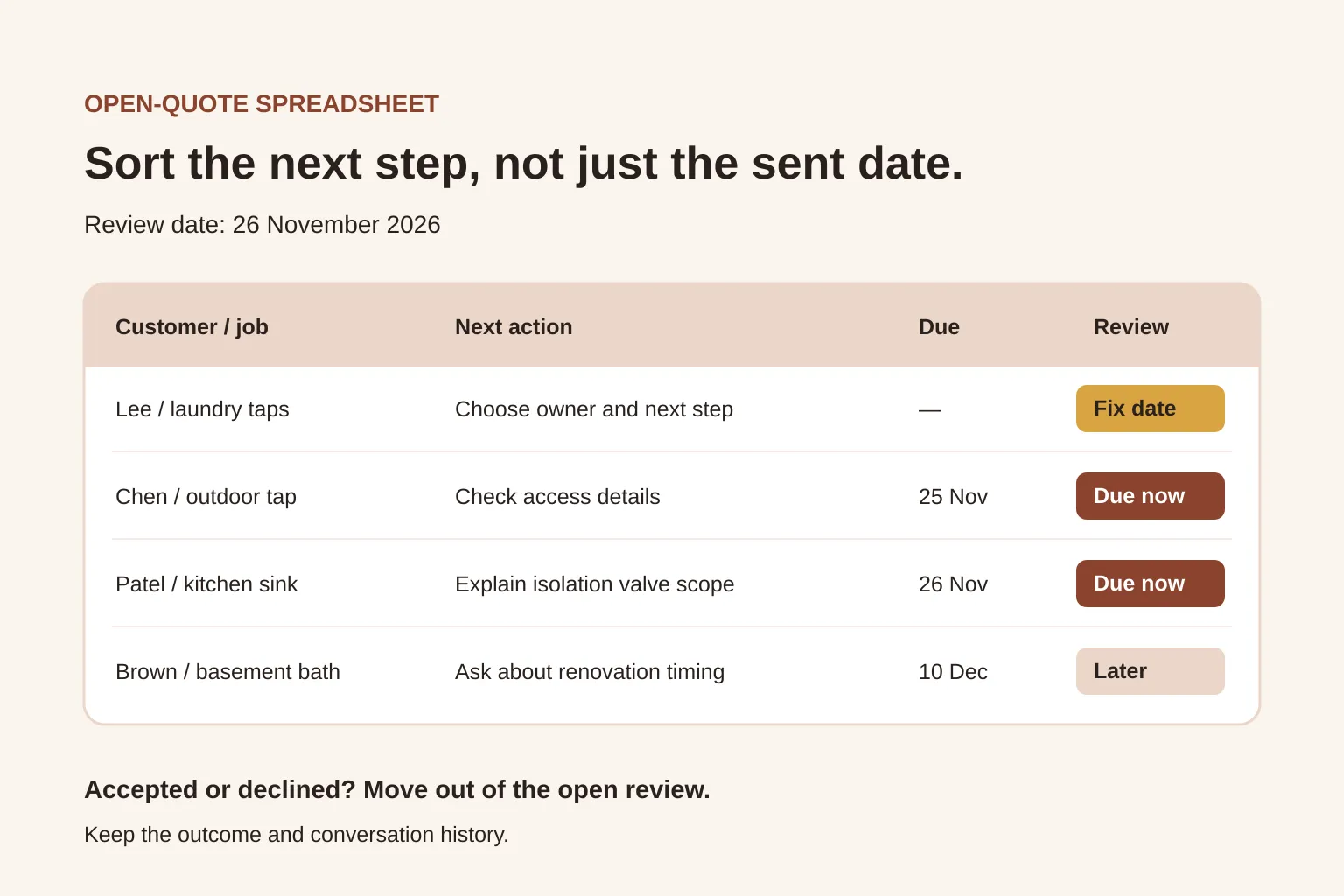
A quote tracking spreadsheet template needs one row per sent quote, with the customer and job, sent date, stage, owner, next action and follow-up date. To choose today’s work, check missing dates first, then review open quotes whose follow-up dates are due. Keep accepted and declined quotes outside that list, and leave customer-requested later dates alone.
Start with the six-column quote tracking spreadsheet template
Download the blank quote-review CSV, or use the printable sheet and import instructions. The CSV supplies headings, not formulas, automatic reminders or a dashboard. Open it in Excel or import it into Google Sheets, then save it as a workbook or Google Sheet before adding formatting.
Use these fields:
| Column | What to enter |
|---|---|
| Customer / job | A name and a short job description you can recognize. Add the quote reference here if one customer has several jobs. |
| Quote-sent date | The date you sent the quote being discussed, such as 2026-11-24. |
| Stage | The current situation: Waiting for reply, Questions to resolve or Decision pending. |
| Owner | One person responsible for the next action. |
| Next action | The actual task, such as “Explain whether the isolation valve is included.” |
| Follow-up date | The date that person needs to act, taking account of the customer’s requested timing. |
Keep the price, scope and quote document in your estimating tool. If you revise a quote, update the existing row’s reference and next action rather than counting the old and new versions as two separate opportunities. Keep any earlier versions in your normal quote records.
Sort whole rows by the follow-up date
Sorting by sent date tells you which quote is oldest. Sorting by follow-up date tells you which action is due. An older quote may be waiting until a date the customer requested; a newer one may have a scope question you need to answer today.
- Check the latest replies and update stages before sorting. Move accepted and declined quotes to a separate closed sheet, preserving the outcome.
- Check open rows with a blank owner, action or follow-up date. Give each a usable next step; an empty date must not mean “nothing to do.”
- Select the entire table, including all six columns, and sort by follow-up date from earliest to latest. Keep the heading row out of the sort. Never sort the date column on its own: that can attach dates to the wrong jobs.
- Review dates on or before today. Check the conversation again before contacting anyone, then work the next action assigned to you.
Use a consistent date format such as YYYY-MM-DD. If dates sort unexpectedly, check whether some cells contain text rather than spreadsheet dates. Colour can help you scan, but the written stage and date should still make sense when the sheet is printed without colour.
A plumbing quote list reviewed on 26 November
Say a small plumbing business has five sent quotes at its Thursday review on 26 November 2026. Alex handles estimating and Sam coordinates customer contact. The cover shows the four quotes that remain open after checking replies.
| Customer / job | Situation at review | Decision for the sheet |
|---|---|---|
| Lee / laundry taps | Quote sent 24 November. Owner and follow-up date are blank. | Sam checks the existing conversation, takes ownership and sets “Check receipt and ask about questions” for 27 November. |
| Chen / outdoor tap | Sam’s access-details check was due 25 November. No newer reply is recorded. | Keep it on today’s list. Sam checks the thread before asking which access arrangement suits the homeowner. |
| Patel / kitchen sink | The homeowner asked whether an isolation valve is included. Alex’s scope check is due 26 November. | Alex reviews the quote and explains the scope today; Sam does not send a general acceptance reminder. |
| Brown / basement bath | The homeowner requested contact on 10 December after reviewing renovation timing. | Keep the 10 December follow-up. Leave it off today’s contact list. |
| Wilson / shower replacement | The homeowner accepted on 25 November. The row still says Waiting for reply. | Record Accepted and move the row out of the open review. Arrange the job through the business’s usual scheduling process. |
After the review, Chen and Patel need attention today. Lee has an owner and a date for tomorrow; Brown remains upcoming; Wilson is no longer awaiting a quote decision. Counting every sent quote as overdue would have produced a very different—and less useful—call list.
Replace the task after a conversation
A follow-up date belongs to the next action, not the last message. Once you have contacted the customer, record what happened in your normal notes and replace the task with whatever comes next.
Suppose Alex answers Patel’s valve question on 26 November and Patel asks for a check-in on 30 November. Alex changes the stage to Decision pending, assigns Sam and writes “Ask whether the clarified scope fits” with a 30 November date. Leaving the old scope check overdue would invite duplicate work.
If you add an outcome-notes column, date each entry and keep it separate from the next-action field. “Called Thursday” records history; it does not tell the next person what to do.
For the message itself, use the contractor guide to following up on a quote. The spreadsheet chooses the job and timing; the latest conversation determines the words.
Keep one working copy and check it between reviews
Choose one shared workbook if two people update quotes. Emailing separate copies makes it hard to tell whether a reply or changed date has reached everyone. Keep customer details in a location accessible only to the people who need them.
Review all open rows weekly, and check due actions during the week. Before adding more columns, look for blank owners, vague tasks and dates that were not changed after a reply. Those gaps can leave work hidden even in a well-formatted spreadsheet.